> ## Documentation Index
> Fetch the complete documentation index at: https://asymptotelabs-claude-cursor-token-usage-6sui0o.mintlify.site/llms.txt
> Use this file to discover all available pages before exploring further.
# Connect Okta
> Connect Okta to populate identity and device inventory in Asymptote.
## Overview
Connect Okta from the Asymptote dashboard to automatically populate the users, groups, and devices tabs.
## Connect Okta
1. Log in to the Asymptote dashboard.
2. Go to **Connectors**.
3. Find the Okta integration.
4. Click **Connect**.
5. Enter your Okta org URL.
6. Enter your Okta API token.
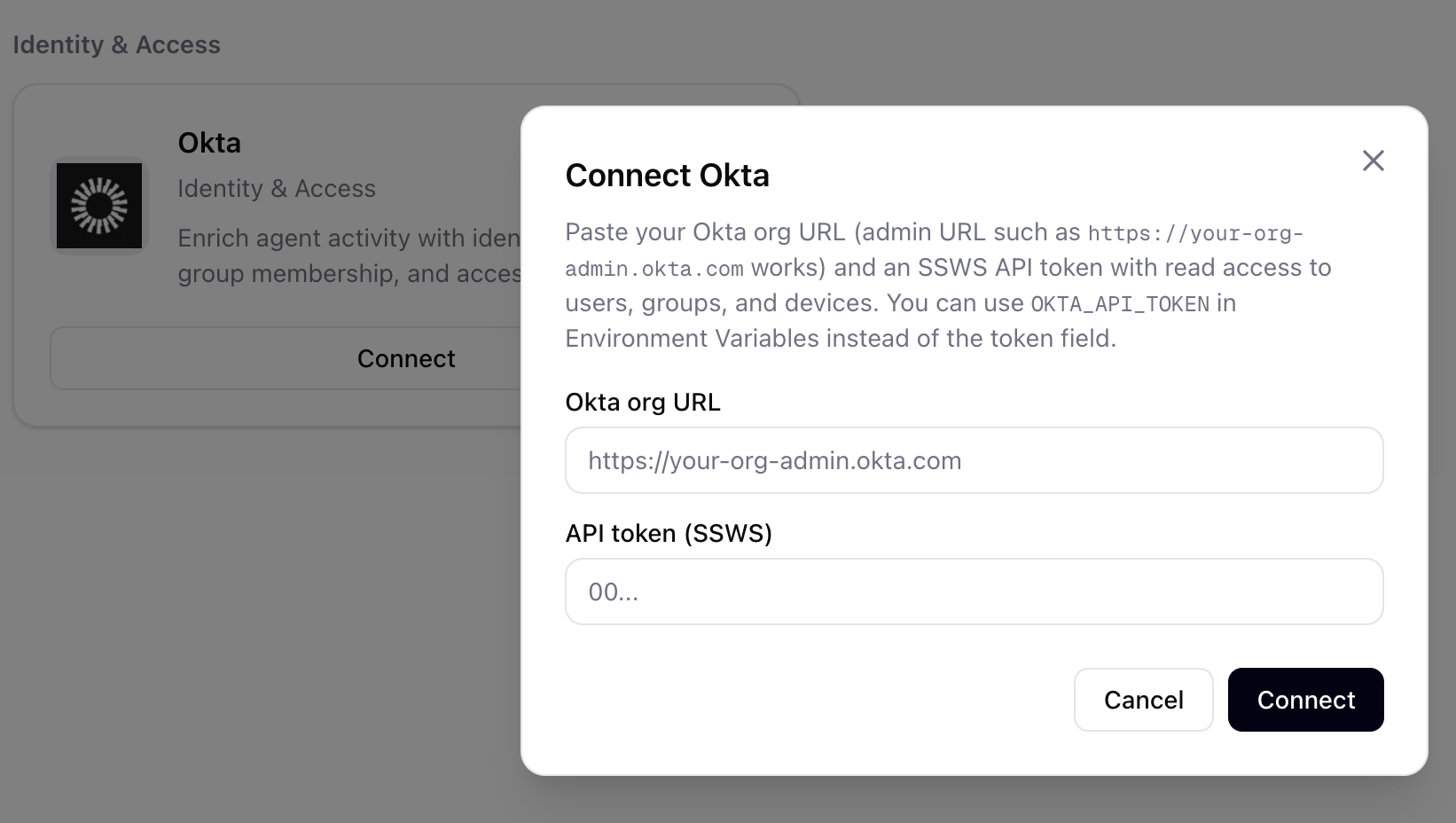 After the connector is authorized, Asymptote automatically syncs Okta data into the users, groups, and devices tabs in the dashboard.
## Generate an Okta API Token
Create the Okta API token from the Okta Admin Console:
1. Go to **Security**.
2. Open **API**.
3. Select **Tokens**.
4. Click **Create token**.
After the connector is authorized, Asymptote automatically syncs Okta data into the users, groups, and devices tabs in the dashboard.
## Generate an Okta API Token
Create the Okta API token from the Okta Admin Console:
1. Go to **Security**.
2. Open **API**.
3. Select **Tokens**.
4. Click **Create token**.
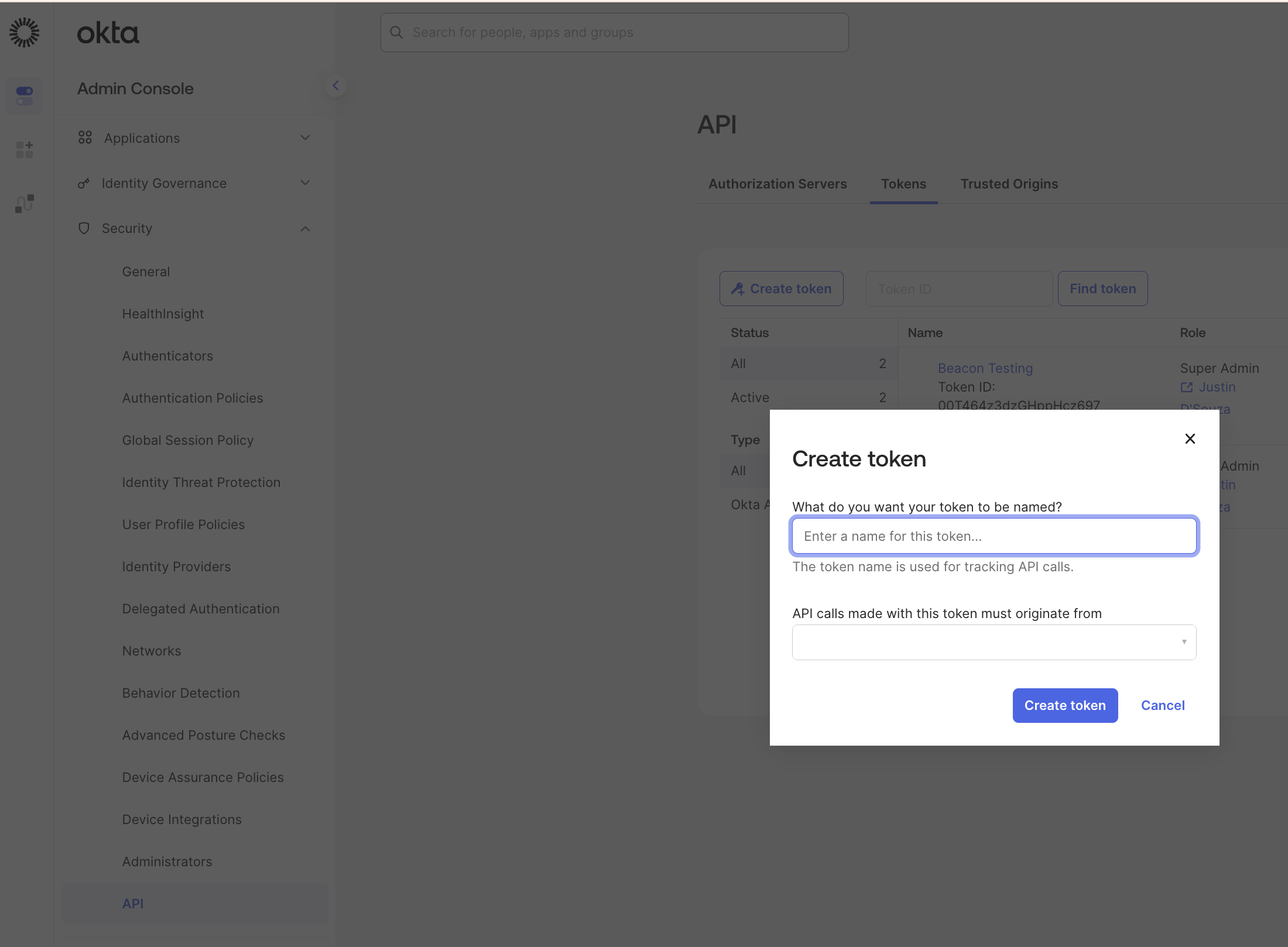 Copy the generated token and paste it into the Okta connector setup flow in Asymptote.